MacOS 15 Sequoia introduced a feature called Private Wi-Fi Address which is meant to prevent tracking across Wi-Fi networks. However, this feature may also prevent you from connecting to Princeton’s Protected Network. To prevent issues connecting to protected resources (printers, network drives, etc.), you should disable this feature for eduroam.
Disabling Private Wi-Fi addresses for Eduroam
- While connected to eduroam, use the Princeton OIT Network Checker and confirm that your University managed computer is not connected to the Princeton Protected Network.
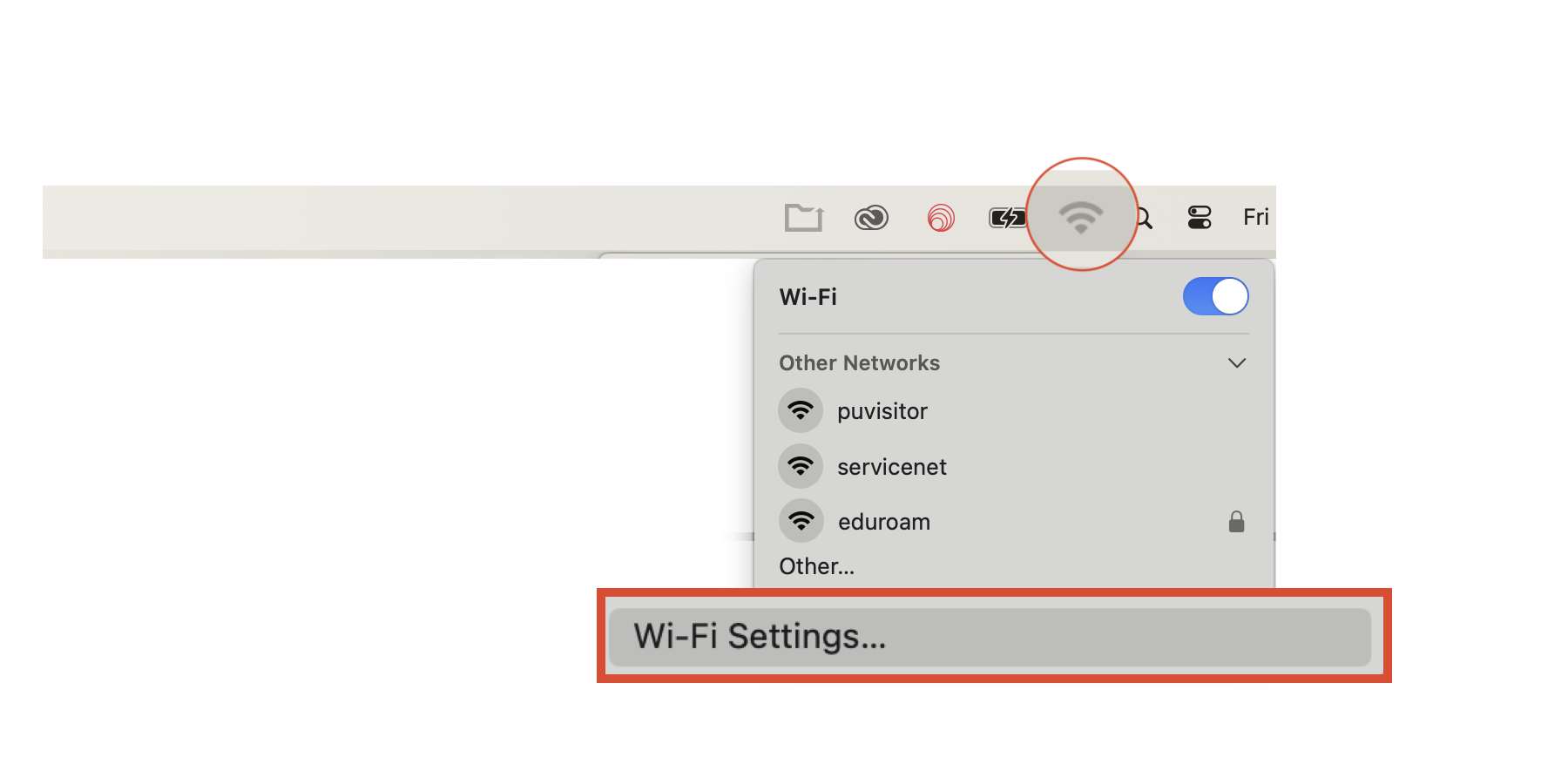
- Click the Wi-Fi icon in the menu bar and select Wi-Fi Settings…
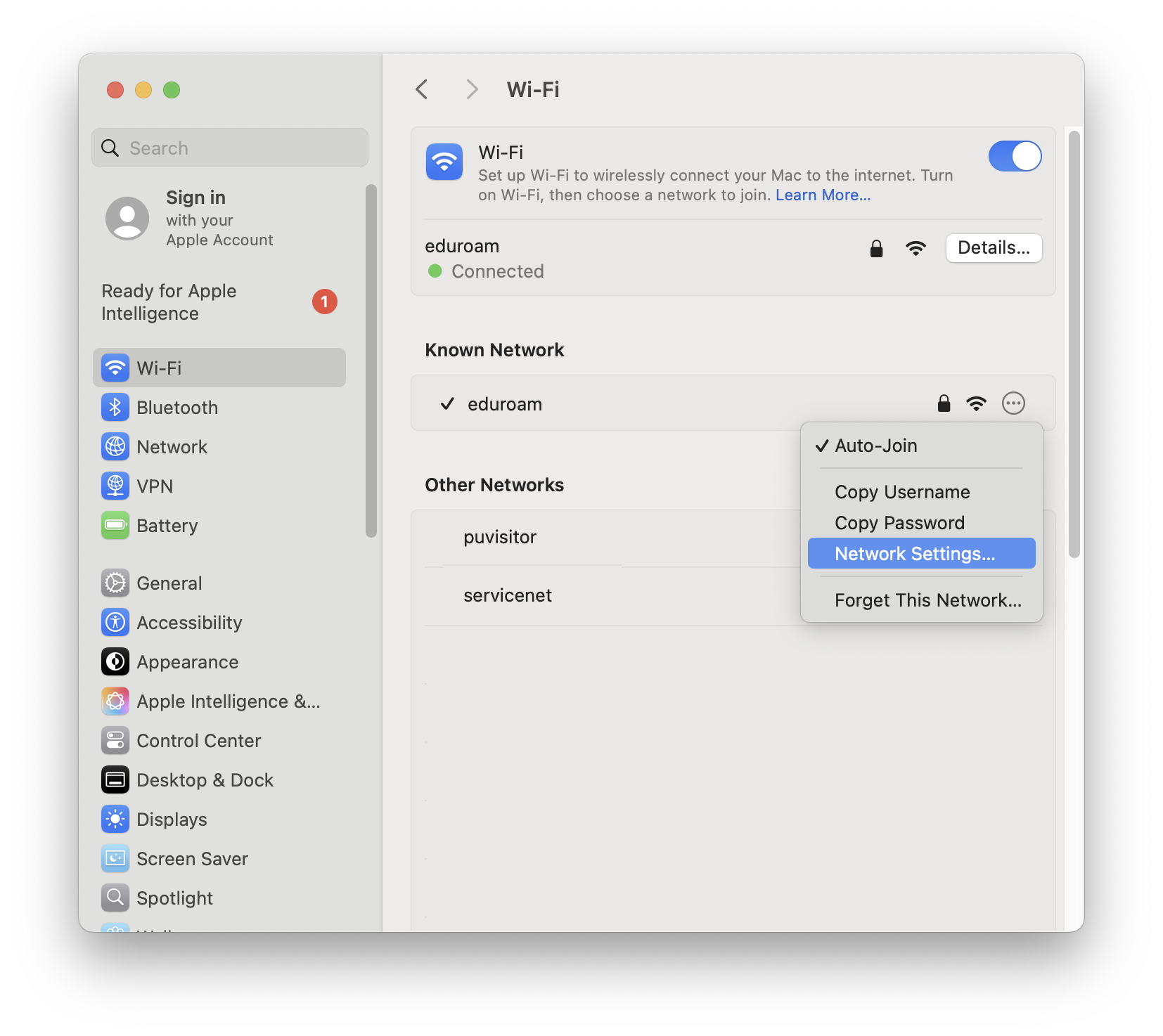
- Open the menu next to eduroam (···) and select Network Settings…
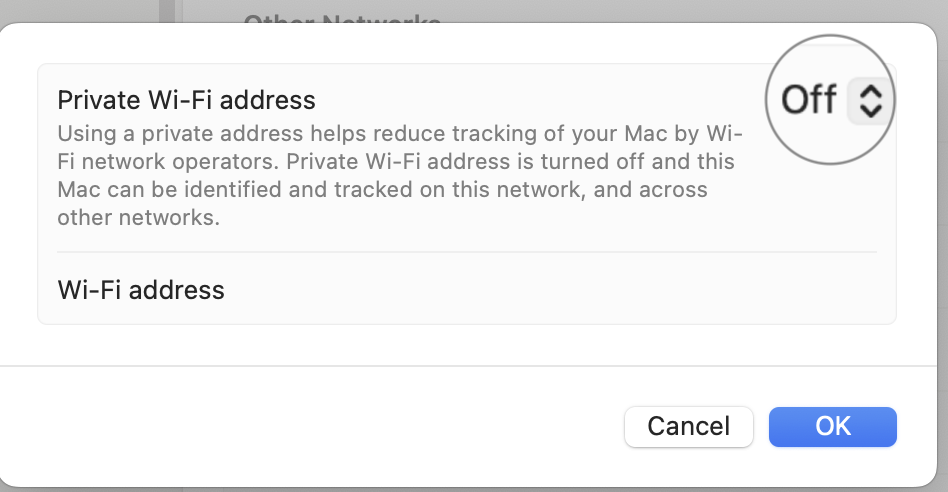
- Set the Private Wi-Fi address setting to Off
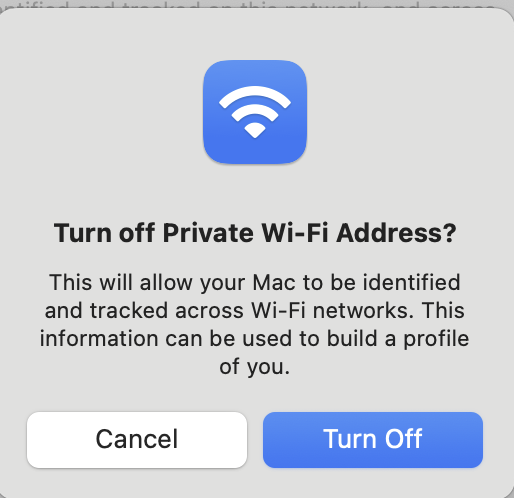
- If prompted, select Turn Off to confirm
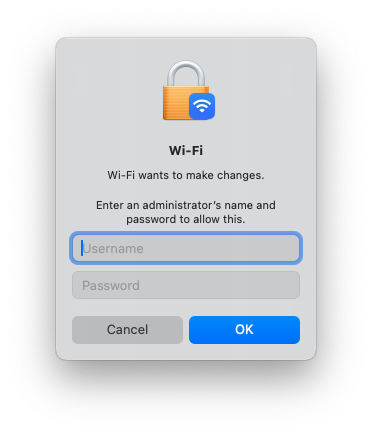
- If prompted, approve the setting change with your administrator account
- Click OK to close the eduroam settings window.
- Close the System Settings window
- Wait a few moments while your computer reconnects to eduroam Wi-Fi
- Go to the Princeton Network Checker and verify that you’re now on the Princeton Protected Network